Master Your Time.

Premium time tracking and invoicing for professionals who value precision and style.

Version 2.0.0 — Available for Mac, Windows, Linux

Invoicer
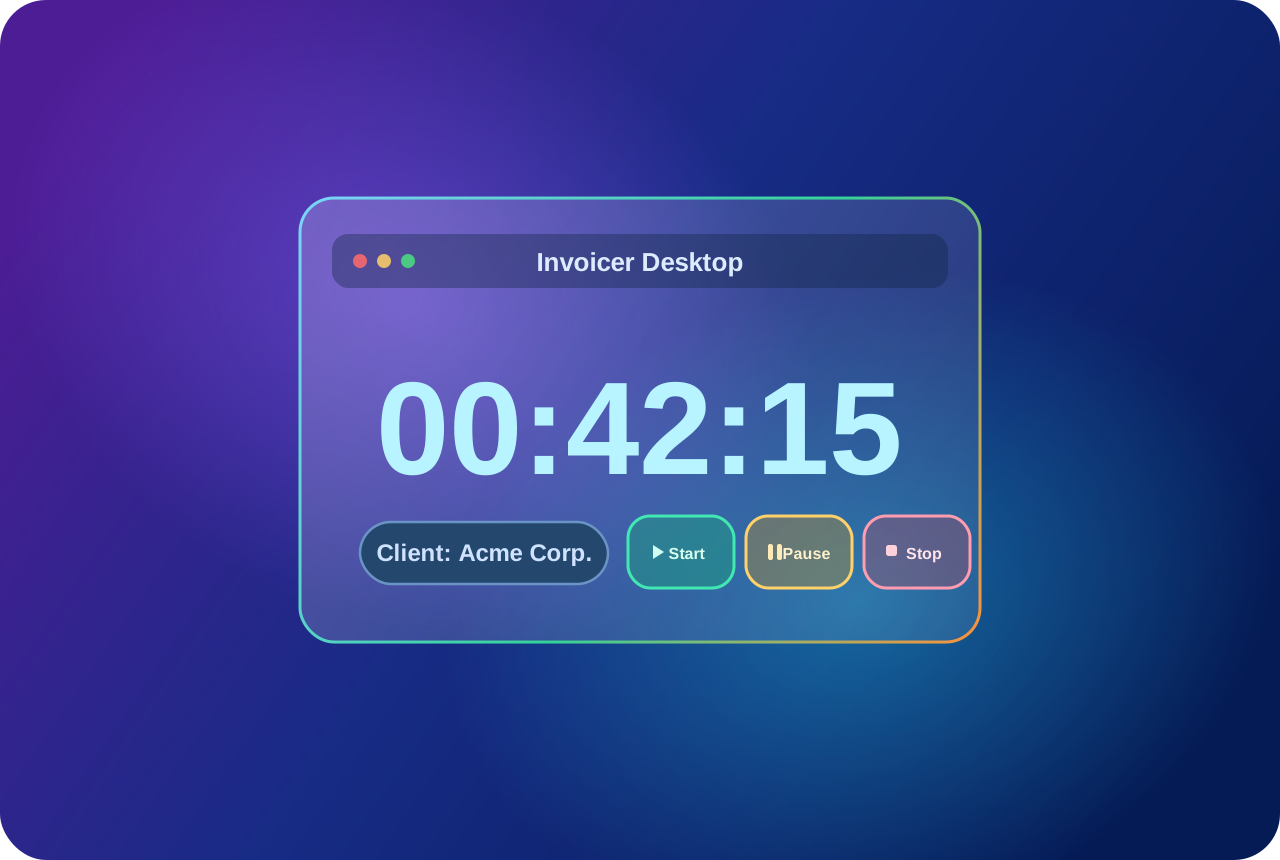
00:42:15
Start
Pause
Stop
Development Services...

Built for modern workflows.

Precision Timer

Precision Tracking

Track every billable second. Our high-fidelity digital timer ensures you never lose a cent of your hard-earned time.

Premium UI

Elegant Interface

A native desktop experience built for those who value style and performance equally. Professional tools, reimagined.

30s Workflow

30-Second Automation

From timer to inbox in seconds. Auto-calculate totals, generate professional PDFs, and email them instantly.

Step 01

Install Invoicer

Download the official package for your operating system below. Invoicer is built with Tauri, ensuring a lightweight, native experience without the bloat.

// Run the installer and
// launch Invoicer from your
// Applications or Start menu.
Step 02

Configure Details

Tell Invoicer about you and your clients. Open config.json in the app directory to set your rates, currencies, and addresses.

{
  "from": {
    "name": "Your Name",
    "email": "[email protected]"
  },
  "client": [
    { "name": "Acme Corp", "defaultRate": 60 }
  ]
}
Step 03

Automate Emails

Supercharge your workflow. Add your SMTP credentials to .env to enable 1-click email sending after every invoice generation.

SMTP_HOST=smtp.gmail.com
SMTP_USER=[email protected]
SMTP_PASS=your-app-password

Keyboard-first workflow.

Shortcut Cheat Sheet

Use Command on macOS and Ctrl on Windows/Linux.

Global (works system-wide)

Cmd/Ctrl + Shift + I Show app
Cmd/Ctrl + Shift + T Toggle timer
Cmd/Ctrl + Shift + P Pause/Resume
Cmd/Ctrl + Shift + S Stop and save
Cmd/Ctrl + Shift + K Open command palette

In-app (when Invoicer is focused)

Cmd/Ctrl + K Open command palette
Space Toggle timer
Enter Stop and save timer
Cmd/Ctrl + 1 / 2 / 3 Manual / Workspace / History
Cmd/Ctrl + , Open sender setup
Cmd/Ctrl + / Show shortcuts help
Esc Close active panel

How to Set Up Your Shortcuts

  1. Open Invoicer, then click the keyboard icon in the top-right corner.
  2. In Shortcut Settings, choose Global or In-app bindings.
  3. Click a key field and press your desired key combination.
  4. Press Save to apply changes immediately.
  5. If a global shortcut conflicts with your OS/app, Invoicer auto-remaps to a fallback and shows a notice.

Usage Notes

  • Global shortcuts always bring the app to front before running the action.
  • Single-key shortcuts (like Space) will not trigger while typing in input fields.
  • You can reset any binding to default, or reset all in one click.

Ready to level up?

macOS

macOS

Intel & Apple Silicon

Download .dmg
Windows

Windows

Windows 10, 11+

Download .exe
Linux

Linux

AppImage & Deb

Download Linux